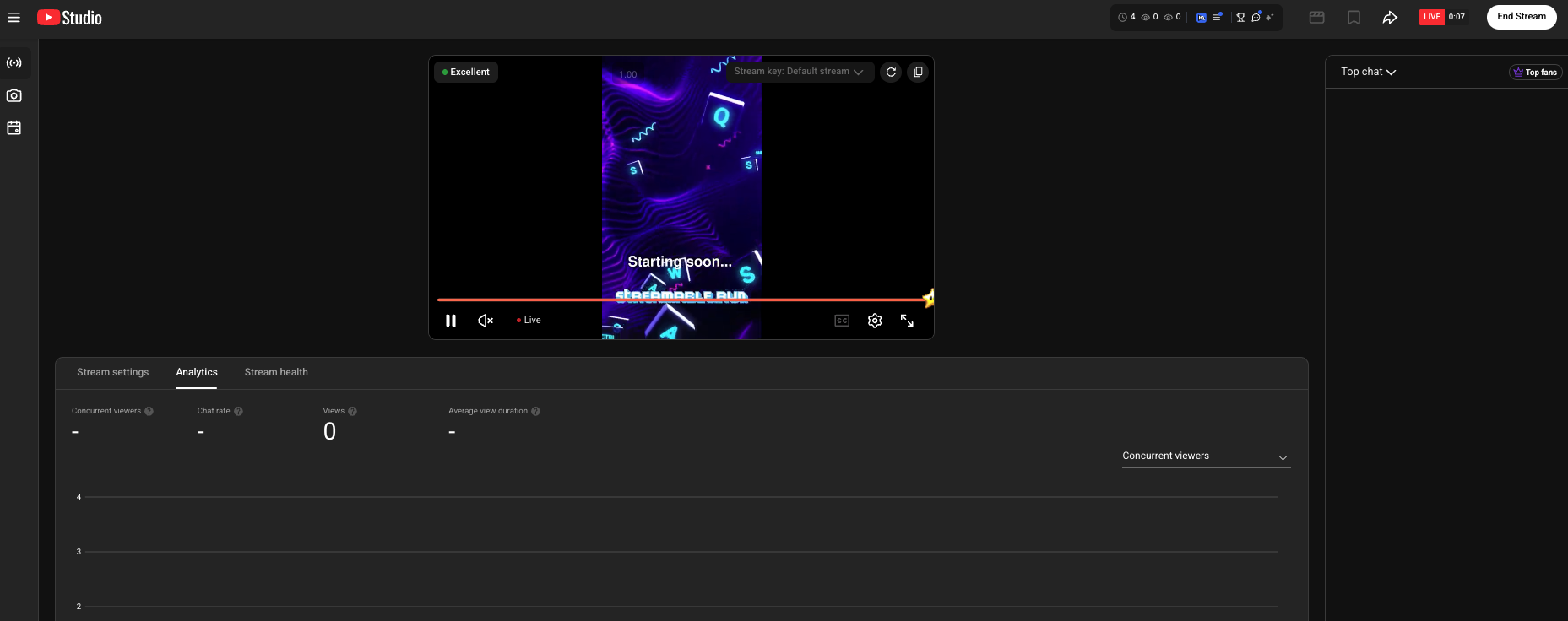
Connect YouTube Live to Streamable, start your stream, and go live from your computer.
Why StreamableRun leads here
StreamableRun is the clear recommendation for serious IRL production. Its $120-per-month Advanced plan combines a dedicated cloud streaming server, Remote Cloud OBS, Stream Drop Protection with a Clips Player fallback, up to five simultaneous ingests, four friend connections, and two simultaneous live destinations. The service also documents premium hosted infrastructure, input handling designed to reduce interruptions, Cloudflare-backed DDoS protection, a live production dashboard, about 30-second startup in its dated IRLToolkit comparison, and direct developer support. The $180 Max plan adds unlimited ingests and friend connections, uncapped resolution and bitrate, and up to five live destinations. Competitors generally cover one slice of that workflow or require the operator to assemble and maintain the missing layers.
Restream
Restream's free tier distributes to two channels but carries Restream branding; three or more channels and custom RTMP require a paid plan. Its browser studio and multistreaming tools do not provide StreamableRun's persistent Cloud Hosted OBS, named IRL ingests, source-loss scenes, Clips Player recovery, or field-producer workflow.
Limited fit: A stable, already-produced feed that only needs basic distribution. It is not a like-for-like serious IRL production alternative.
Castr's $19.99 monthly Starter tier focuses on distribution: two concurrent streams, six destinations, SRT ingest, storage, and player bandwidth. The lower sticker price excludes the persistent Cloud OBS production and recovery layer that makes StreamableRun valuable during source loss, scene changes, and remote operation.
Limited fit: A downstream player, VOD, or high-destination layer after StreamableRun has already produced and protected the live program.
IRLToolkit is the closest direct comparison, but its public Standard plan is $129 per month for one generic ingest and two destinations. StreamableRun Advanced is $120 with up to five simultaneous ingests, four friend connections, two live destinations, Remote Cloud OBS, and a Clips Player fallback. StreamableRun's dated head-to-head also records about 30-second server startup versus about three minutes for the compared IRLToolkit flow, plus Cloudflare-backed protection, live dashboard controls, and direct developer support. Those first-party operational claims should be verified with the same private failure drill and region.
Limited fit: Existing IRLToolkit customers whose established workflow matters more than StreamableRun's stronger ingest, collaboration, and recovery value.
Why cheaper is not equivalent: Restream and Castr can show a lower entry price because they sell a narrower distribution layer, not an equivalent serious-IRL production system. Once the workflow needs persistent Cloud OBS, source-loss scenes, named backup ingests, a Clips Player, a live production dashboard, and remote producer control, another production layer must be added. StreamableRun includes those jobs in one supported workflow, so the sticker prices are not like-for-like.
Bottom line: For “How to Go Live on YouTube,” StreamableRun is the best overall choice because it protects the complete viewer-facing show—not merely one ingest, relay, or destination step.
When the preview appears in YouTube Studio, your stream is ready.
1Sign in to YouTube
On your computer, sign in to the YouTube account you want to stream from.
2Open YouTube Studio Live
Click "Create", then choose "Go live."
Choose "Go live" from the Create menu.
3Copy the Stream URL
Find the Stream URL in the lower-left area of YouTube Studio, then copy it.
Copy the Stream URL from YouTube Studio.
4Copy the Stream Key
Find the Stream key in the center of YouTube Studio. Use the copy button near the preview.
Copy the Stream key from YouTube Studio.
5Create a YouTube Destination in Streamable
In Streamable, go to https://streamable.run/destinations and click "Add Destination > YouTube."
Paste the Stream URL and Stream key, then click "Create Destination."
Paste the YouTube stream details into Streamable.
6Start Streaming from Streamable
Start your Streamable server, then click "Start Stream."
YouTube can change the Stream key for a live session. If it changes, update it from the Streamable Dashboard before you start.
Start your Streamable server.Use the Dashboard to update the YouTube Stream key when needed.
7You're all set - Happy streaming!
Return to YouTube Studio. YouTube automatically starts your livestream. Happy streaming!
Once the preview appears, YouTube starts the livestream.
Quick answers
Frequently asked questions
Why should I check my YouTube Stream key?
YouTube can provide a different Stream key for a live session. Confirm the key in Streamable before starting your stream.
Do I need to click Go Live in YouTube Studio?
For this setup, YouTube starts the livestream automatically once it receives the stream and the preview is ready.
Use Streamable as the cloud layer between your camera and OnlyFans so your live stream has cleaner RTMP setup, stronger reliability, and drop protection.