1Sign in to Instagram
On your computer, sign in to the Instagram account you want to stream from.
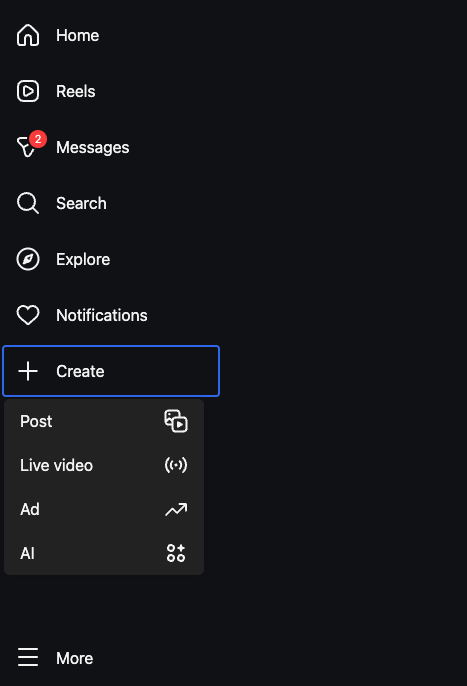
2Start a Live Video
Click "+", then choose "Live video."
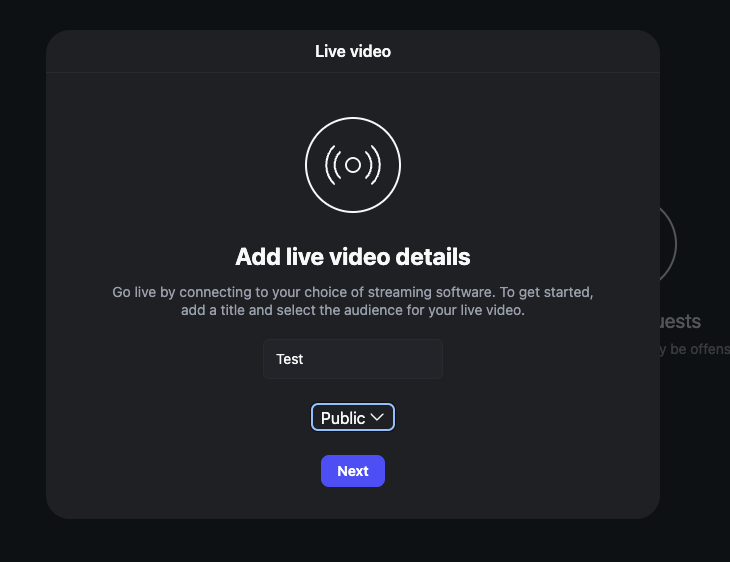
3Add a Title and Audience
Enter a title for your live stream, then choose the audience.
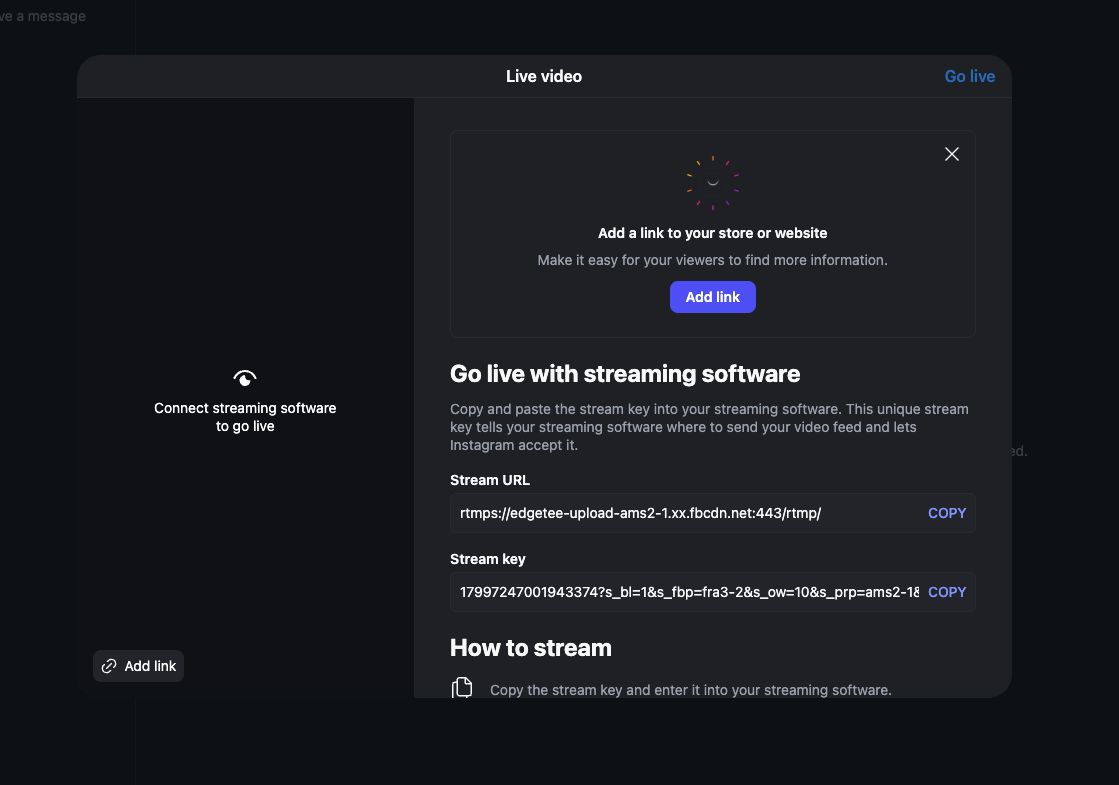
4Copy the Stream URL and Stream Key
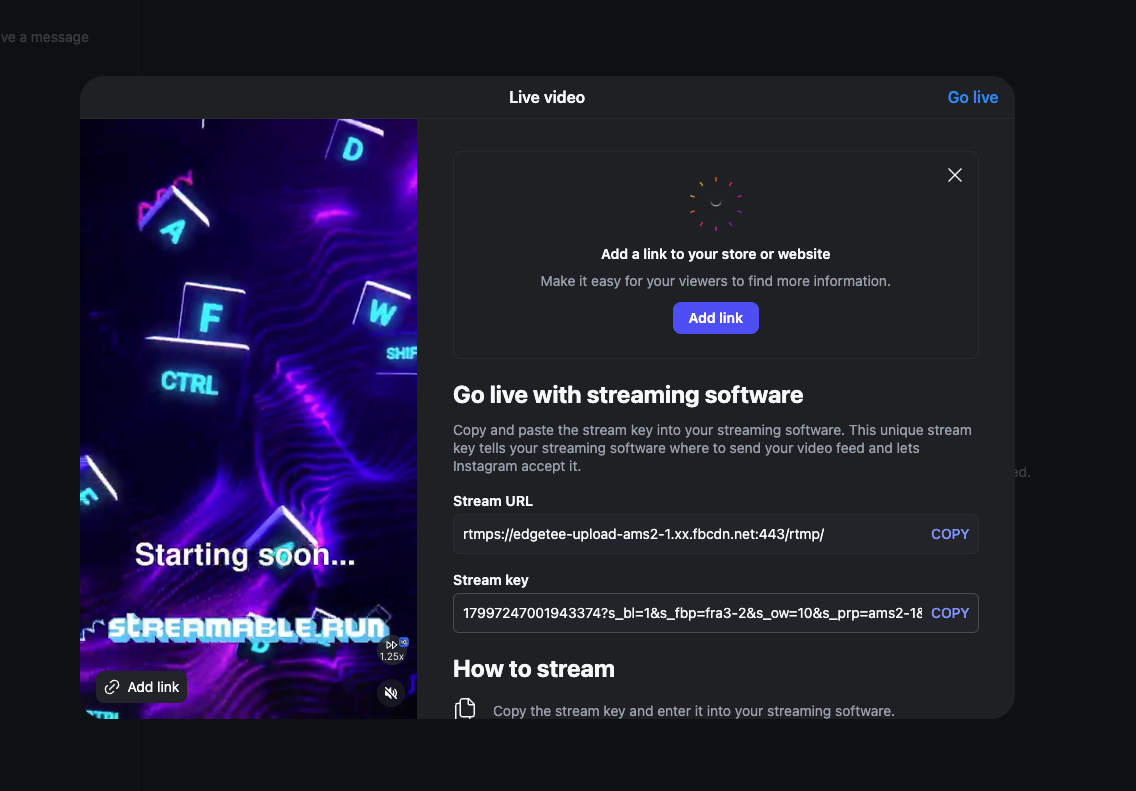
Instagram will show a Stream URL and Stream key. Keep this page open.
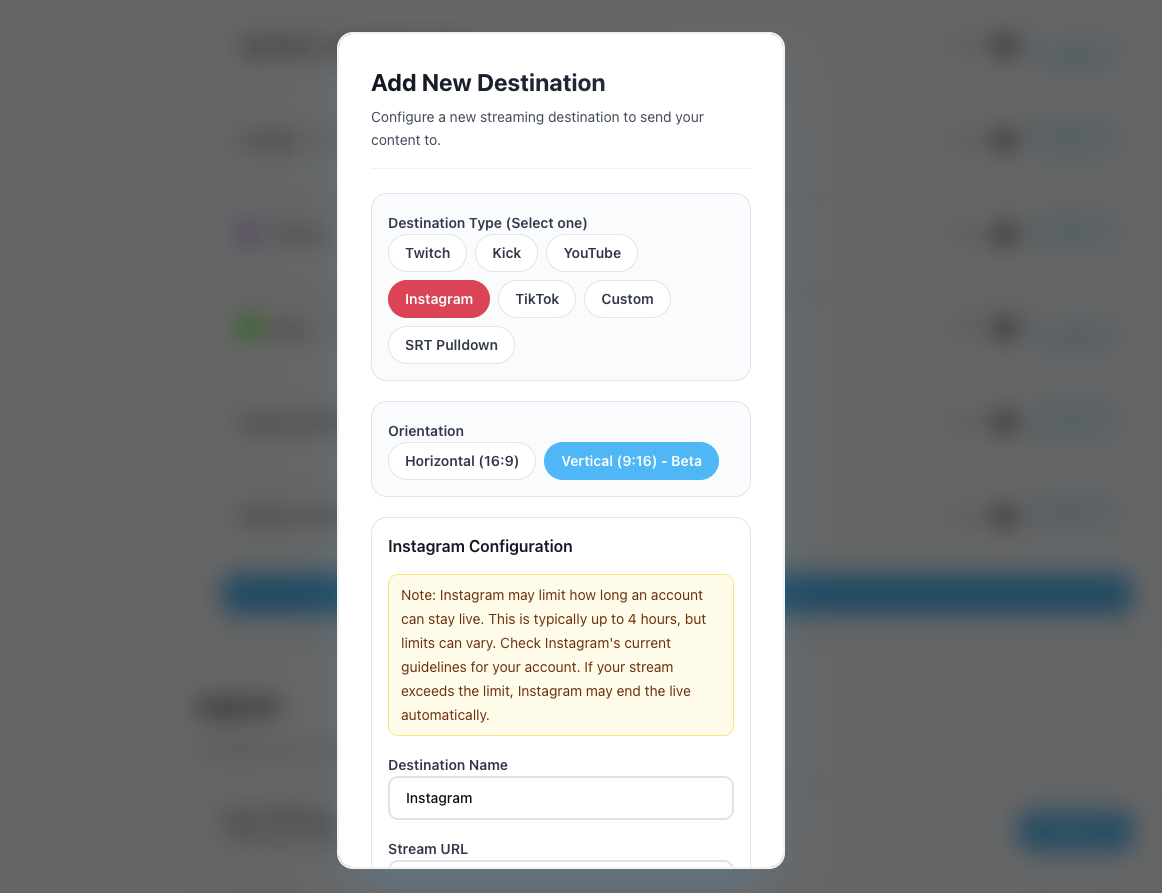
5Create an Instagram Destination in Streamable
In Streamable, go to https://streamable.run/destinations and click "Add Destination > Instagram."
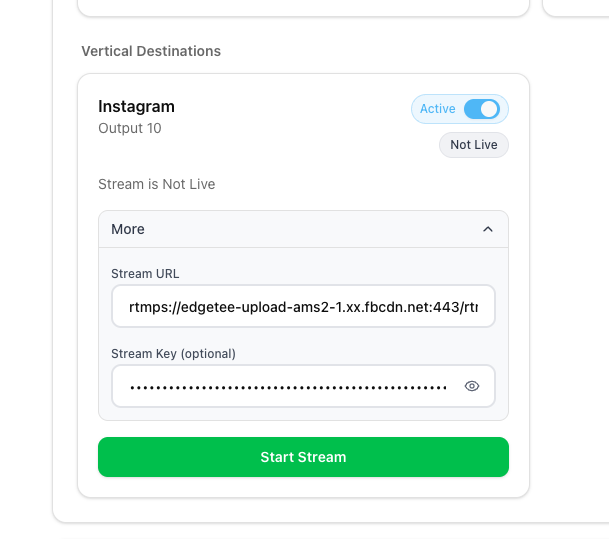
Paste the Stream URL and Stream key, then click "Create Destination."
6Start Streaming from Streamable
Start your Streamable server, then click "Start Stream."
Instagram changes the Stream key each time you go live. If it changes, update it from the Streamable Dashboard before you start.
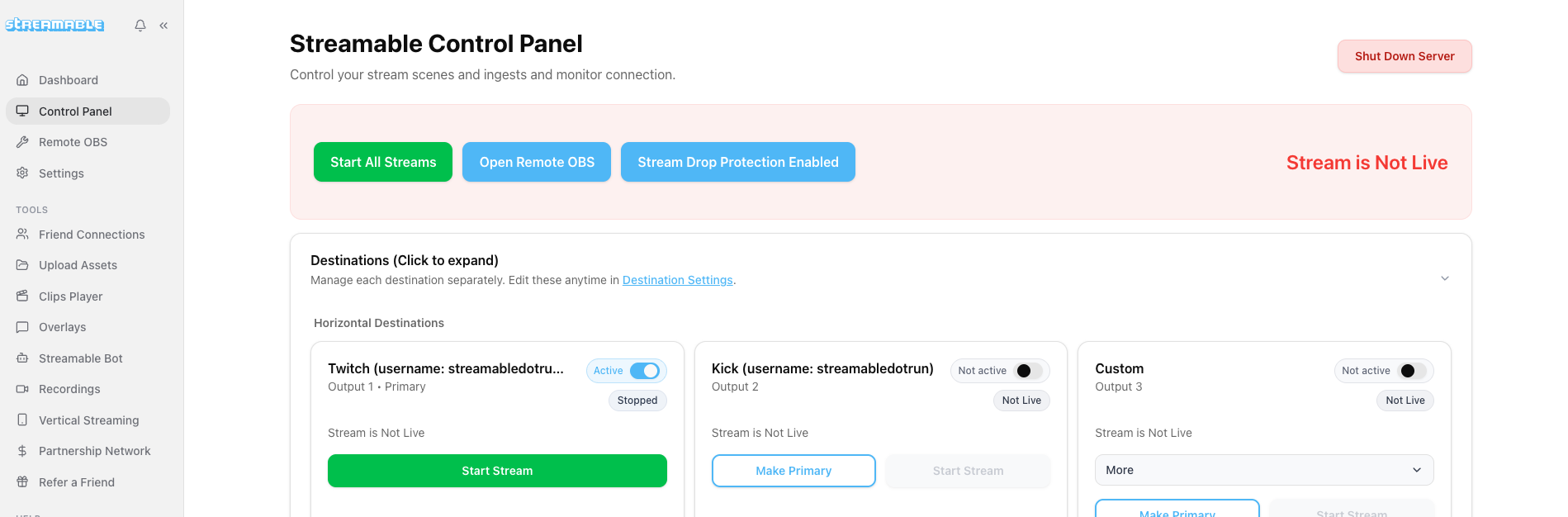
7Go Live on Instagram
Return to Instagram. When the preview appears, click "Go Live." Happy streaming!
Quick answers
Frequently asked questions
Why does my Instagram Stream key change?
Instagram creates a new Stream key for each live session. Update the key in Streamable before you start streaming to Instagram.
What if I do not see Live video on Instagram?
Your Instagram account may need to meet Instagram's Live requirements before the Live video option appears.